
Windows 11: how to display full folder thumbnails
Windows 11: how to display full folder thumbnails
Folders in Windows 11 show a preview of the files they contain when certain folder views are enabled. This is the case for the medium, large, and extra large icon views, as well as the views tiles and content.
Windows 11 displays a cut-off preview of one of the files, which you may dislike because it may get harder to identify files.
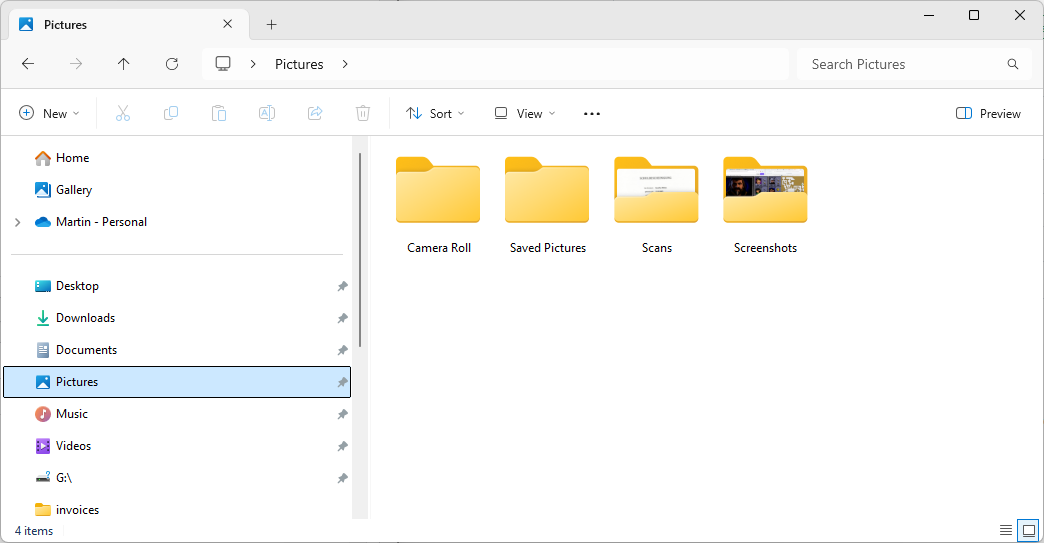
The operating system comes without options to change this. Good news is that third-party apps come to the rescue to modify the default view.
Restore folder thumbnails in Windows 11
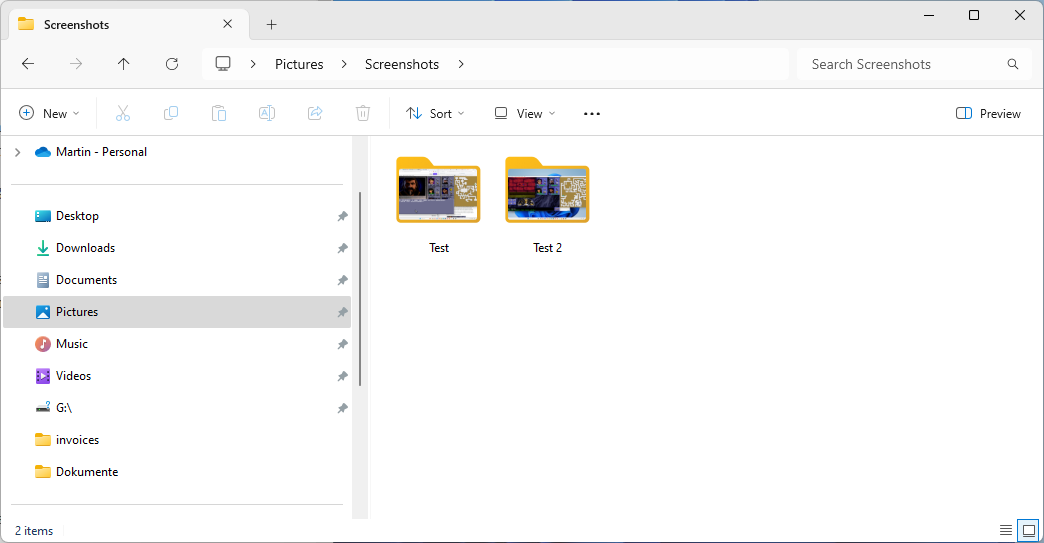
FolderThumbnailFix is an open source tool that changes a single file in Windows 11. This file is responsible for cutting off the thumbnails that folders show in the operating system.
Word of warning: While we did not notice any issues using the program, it is recommended to either backup the original file in question or create a system restore point or system backup before using the application. The developer notes furthermore that some antivirus apps may falsely flag the app as malicious.
Here is what happens behind the scenes. The file C:\Windows\SystemResources\imageres.dll.mun is responsible for cutting off thumbnails displayed in folder icons. The application in question modifies the file to add transparency to the folder icon. With transparency in place, folder thumbnails are shown in full.
It uses the excellent Resource Hacker for that.
Installation
Installation is straightforward and requires just a few steps:
- Download the latest version of FolderThumbnailFix.zip from the GitHub repository.
- Extract the archive to the local system.
- Right-click on FolderThumbnaiFix.exe after extraction and select properties from the context menu.
- Check the "unblock" box under security.
- Click on apply and then ok.
- Double-click on the executable file to run it.
- Select the full thumbnail style.
- Confirm the action in the security prompt by selecting yes.
- Restart the PC.
- Repeat the steps from 7, but without the restart in the end, if you do not see any change.
The application makes the modification mentioned above. You can undo the change at any time by running the application again and selecting the default view when prompted to make a choice.
FolderThumbnailFix can't make the change when the Windows file imageres.dll.mun is in use. The developer suggests to retry the process in that case.
Closing Words
Whether the application is useful or not depends largely on the view modes that you use in File Explorer and whether you prefer a full preview of files in folders.
What is your preference? Do you display files and folders as icons in File Explorer, or prefer a different view? Let us know in the comments. (via Deskmodder)
More like this
-
Nokia 2660 Flip review: retro phone that is surprisingly versatile
 Nokia 2660 Flip review: retro phone that is surprisingly versatileRead more
 -
Next Windows 10 update brings Windows Spotlight, Lock screen content, and another Windows 11 upgrade offer
Next Windows 10 update brings Windows Spotlight, Lock screen content, and another Windows 11 upgrade offerRead more
-
Windows 11 Government Edition is what everyone wants, but there is a catch
Windows 11 Government Edition is what everyone wants, but there is a catchRead more
-
Microsoft releases the October 2024 security updates for Windows
Microsoft releases the October 2024 security updates for WindowsRead more
-
Microsoft unveils new Click to Do features for Copilot+ PCs
Microsoft unveils new Click to Do features for Copilot+ PCsRead more