
How to enable the Ultimate Performance plan in Windows 11
How to enable the Ultimate Performance plan in Windows 11
Windows 11 supports several power modes by default. These allow users to customize the power consumption of the device.
By default, only a few power modes are available: balanced, power saver, and high performance. Here is how they differ:
- Balanced: attempts to balance performance and energy consumption.
- Save Power: attempts to save power by reducing performance.
- High performance: improves performance, but may require more energy.
What Microsoft does not tell its users is that Windows 11 supports more power modes. These are not shown by default, however and need to be enabled by administrators before they become available.
One of these modes is Ultimate Performance. This mode is available on Windows 11 Pro for Workstations systems only by default. It can be activated on other systems. Here is what it does:
- Ultimate Performance: ensures maximum performance on high-end PCs
Tip: you may enable the Ultimate power plan on Windows 10 as well.
How to enable Ultimate Performance mode in Windows 11
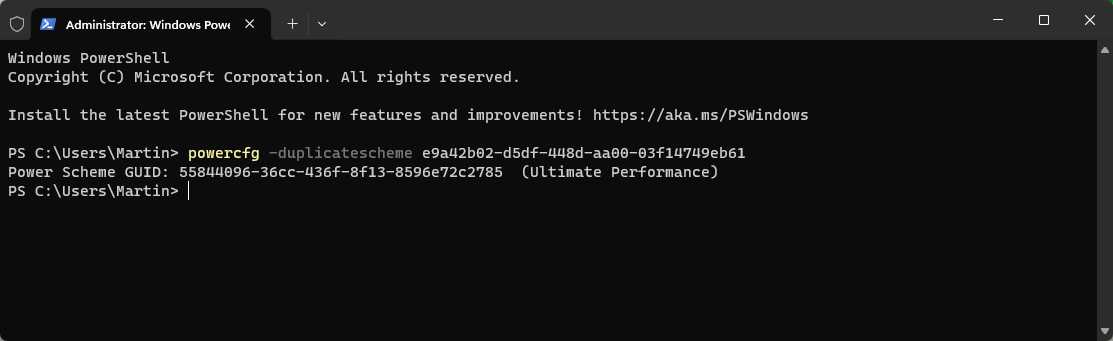
It takes just a few steps to add the Ultimate Performance power plan to the Windows 11 system.
- Use the keyboard shortcut Windows-X to open the secret menu.
- Launch Terminal from the menu.
- Type the command powercfg -duplicatescheme e9a42b02-d5df-448d-aa00-03f14749eb61.
- Press the Enter-key.
This adds the power plan to the operating system. A restart of the system is not required. It can now be selected in the following way:
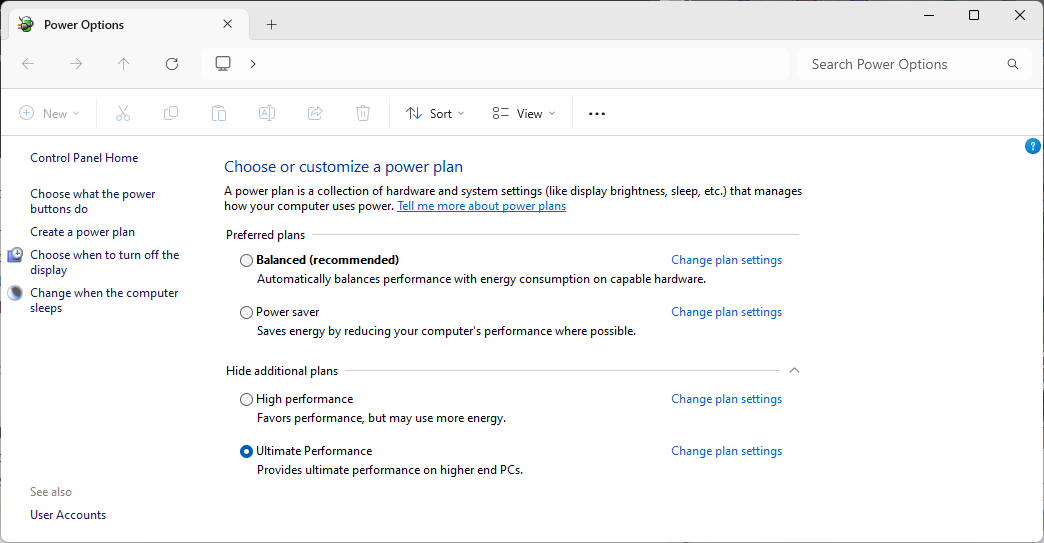
- Open the Start menu.
- Type Power.
- Launch Power options.
- Select Ultimate Performance in the window that opens. (you may need to expand "hide additional plans" to see it)
Note that you may change the power plan at any time. Just select a different plan, the recommended Balanced plan for instance using the Power options menu.
You should not expect a groundbreaking performance boost after enabling the Ultimate Performance plan, but it may be worth a shot if you want to get the maximum performance out of the Windows 11 device.
The plan may is not ideal for mobile use, as it may cause power consumption to go up. In other words, you may need to connect it to a power source earlier compared to other power plans.
Now it is your turn. Have you changed the power options on your Windows devices, or do you prefer to keep the defaults?
More like this
-
Game developer claims Intel is selling defective CPUs
 Game developer claims Intel is selling defective CPUsRead more
 -
Netflix launches cheaper extra members subscription with a catch
Netflix launches cheaper extra members subscription with a catchRead more
-
Microsoft Removes Information about Windows 11 Bypass for Unsupported PCs
Microsoft Removes Information about Windows 11 Bypass for Unsupported PCsRead more
-
OpenAI CEO Sam Altman Outlines Roadmap for GPT-4.5 and GPT-5
OpenAI CEO Sam Altman Outlines Roadmap for GPT-4.5 and GPT-5Read more
-
Bethesda Offers Fans a Chance to Be Immortalized in The Elder Scrolls 6
Bethesda Offers Fans a Chance to Be Immortalized in The Elder Scrolls 6Read more