

Microsoft publishes new Registry security mitigation for Intel processors (Spectre)
Microsoft publishes new Registry security mitigation for Intel processors (Spectre)
About six years ago, vulnerabilities were discovered that affected most Intel and AMD processors. The vulnerabilities, Spectre and Meltdown, can be exploited to read sensitive data from attacked computer systems.
Intel released an update for one of the Spectre variants, disclosed officially on March 8, 2022. Microsoft implemented mitigations in client and server versions of Windows as a response to this.
These are disabled by default. The main reason for this seems to be potential performance impacts that comes with the implementation.
This guide walks you through the steps of configuring Windows to enable the mitigations and finding out if your processor is affected.
Is your processor affected?
The very first thing you may want to do is check if your processor is on Intel's list of affected CPUs.
- If it is on the list, you may enable the mitigation to protect the system against potential attacks.
- If it is not on the list, you can skip the remainder of the article.
Here is how you find out:
- Open Start > Settings > System > About and check the listed processor.
- Load the following two resource websites: Nist.gov and Intel's Affected Processors website.
Check to see if the installed processor is listed on these websites. You may want to use the browser's search to find the information quickly.
Microsoft's Registry tweak to protect against the vulnerability
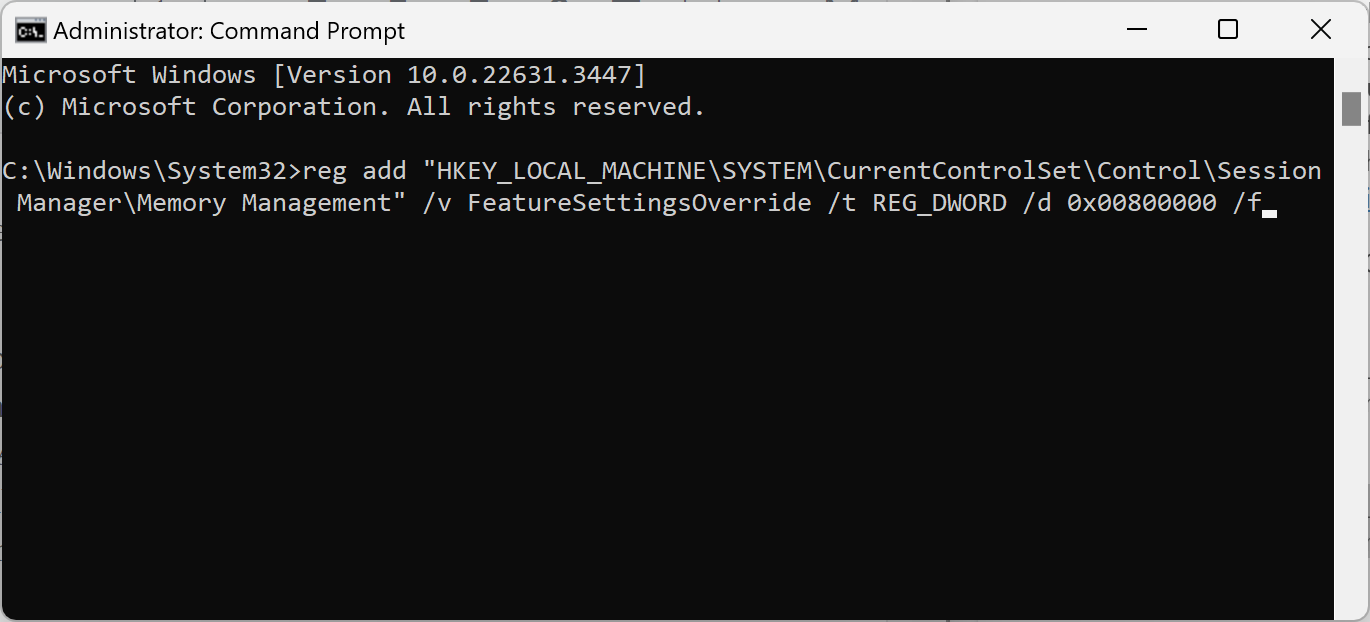
If your processor is on the list, you may change the Registry keys to enable the mitigations.
Note: implementation may affect performance. While I cannot recommend not enabling these mitigations, the risk of attacks against home PCs is most of the time neglectable.
Backup: it is highly recommended to back up the system drive before implementing the mitigation. Not with Windows' Backup App, which is useless for the purpose, but with a full backup program like Paragon Backup & Recovery Free.
Here is what you need to do on Windows devices and clients to mitigate CVE-2022-0001:
- Open Start, type CMD, and select Run as administrator. This launches an elevated command prompt window.
- Confirm the UAC prompt by selecting yes.
- Execute the following two commands by pasting them and pressing the Enter-key after each:
- reg add "HKEY_LOCAL_MACHINE\SYSTEM\CurrentControlSet\Control\Session Manager\Memory Management" /v FeatureSettingsOverride /t REG_DWORD /d 0x00800000 /f
- reg add "HKEY_LOCAL_MACHINE\SYSTEM\CurrentControlSet\Control\Session Manager\Memory Management" /v FeatureSettingsOverrideMask /t REG_DWORD /d 0x00000003 /f
- Restart the computer after both Registry keys have been added.
Tip: you may want to monitor performance to make sure that day-to-day operations are not severely impacted by the mitigation.
Interestingly enough, Microsoft has also revealed how Linux users may mitigate the vulnerability: "Specify spectre_bhi=on on the kernel command line".
Closing Words
While it may be critical for organizations to implement the mitigation, risks of attacks are relatively low for home users.
What about you? Have you implemented Spectre / Meltdown mitigations on your PCs? (via Neowin)
More like this
-
The Epic Games Store is coming to iOS and Android
 The Epic Games Store is coming to iOS and AndroidRead more
 -
macOS 15 Sequoia announced with Window Tiling, iPhone Mirroring, Passwords app and more
macOS 15 Sequoia announced with Window Tiling, iPhone Mirroring, Passwords app and moreRead more
-
Windows 11 Start Menu is getting a new layout to organize your apps
Windows 11 Start Menu is getting a new layout to organize your appsRead more
-
Accidental Integration: Netflix Shows Up on Apple TV App, Then Disappears
Accidental Integration: Netflix Shows Up on Apple TV App, Then DisappearsRead more
-
Spotify's new snooze button will remove songs from your recommendations for a month
Spotify's new snooze button will remove songs from your recommendations for a monthRead more